


Article
Back to blogLast updated:
Installing IBO Player on an LG Smart TV is a practical way to load and play an IPTV playlist directly on a television running webOS. The application acts as a media player: once installed, you simply connect a compatible playlist to organize and access live TV channels, movies, series, and, when supported by your provider, the electronic program guide (EPG).
The setup can still feel less straightforward the first time. The application itself is installed directly from the TV, while adding the playlist may require the MAC Address and Device Key displayed by IBO Player.
If IBO Player is already installed on your television, you can skip directly to the section about adding the IPTV playlist.
What you need before getting started
Preparing the required information in advance makes the installation much faster. It also prevents you from having to stop halfway through the setup to look for a login, password, or server URL.
- An LG Smart TV compatible with webOS.
- A working Internet connection on the television.
- IBO Player available for your TV model and region.
- A smartphone, tablet, or computer to access the playlist management portal more easily.
- Your MAC Address and Device Key once IBO Player has been launched.
- A playlist or IPTV service that you are authorized to use.
- The login information supplied with that playlist.
Is IBO Player compatible with LG webOS?
IBO Player can be used on LG Smart TVs running webOS when the application is available in the app store accessible from the television.
Exact availability may vary depending on several factors:
- the LG Smart TV model;
- the webOS version;
- the year of the television;
- the region configured on the account or TV;
- the current availability of the app in the LG store.
The most reliable way to confirm compatibility is therefore to search directly for “IBO Player” in the app store on your LG Smart TV. We will do this during the installation steps below.
Does IBO Player provide IPTV channels directly?
No. It is important to separate the media player from the content source. IBO Player is an application designed to read and organize a playlist; installing the application does not mean that TV channels, movies, or series are automatically included.
IBO Player ≠ IPTV provider. Think of the application as the player: it requires a compatible source in order to display content.
Requirements before installing IBO Player on an LG TV
Before starting the installation of IBO Player on your LG Smart TV, prepare both your television and the information required to configure your playlist. This quick check only takes a few minutes, but it helps prevent many common issues such as an app that cannot be found, a playlist that does not load, connection errors, or missing EPG data.
You mainly need three things: an LG TV compatible with webOS, a working Internet connection, and your IPTV playlist credentials.
An LG Smart TV compatible with webOS
The first requirement is naturally an LG Smart TV running webOS that allows IBO Player to be installed from its application store.
Application availability can vary depending on the television model, webOS version, and configured region. It is therefore better to check directly on the TV rather than assume that every webOS model supports the application.
- Turn on your LG Smart TV.
- Make sure it is connected to the Internet.
- Open the app store available on your TV.
- Use the search feature.
- Search for IBO Player.
- Confirm that the application can be installed on your device.
IBO Player does not appear in the search results? Do not immediately download the app from an unknown source. First check your TV model, webOS version, and the region configured on the device.
How to install IBO Player on LG Smart TV webOS
Now that the requirements are ready, you can move on to the installation of IBO Player on your LG Smart TV webOS. This first part is completed directly on the television: you will search for the application, install it, and then launch it to retrieve the information required to add your playlist.
Keep your smartphone or computer nearby. After launching IBO Player for the first time, you will need two pieces of information shown by the app: the MAC Address and the Device Key.
Step 1: search for IBO Player in the LG Content Store
From the home screen of your LG Smart TV, open the LG Content Store or the application store available on your version of webOS. Then use the search tool and enter IBO Player.
- Turn on your LG Smart TV.
- Make sure the television is connected to the Internet.
- Open the LG application store.
- Select the search icon.
- Enter IBO Player.
- Open the application page corresponding to IBO Player.
On the application page, check the displayed name and information before continuing. This helps you avoid installing another IPTV app with a similar name by mistake.
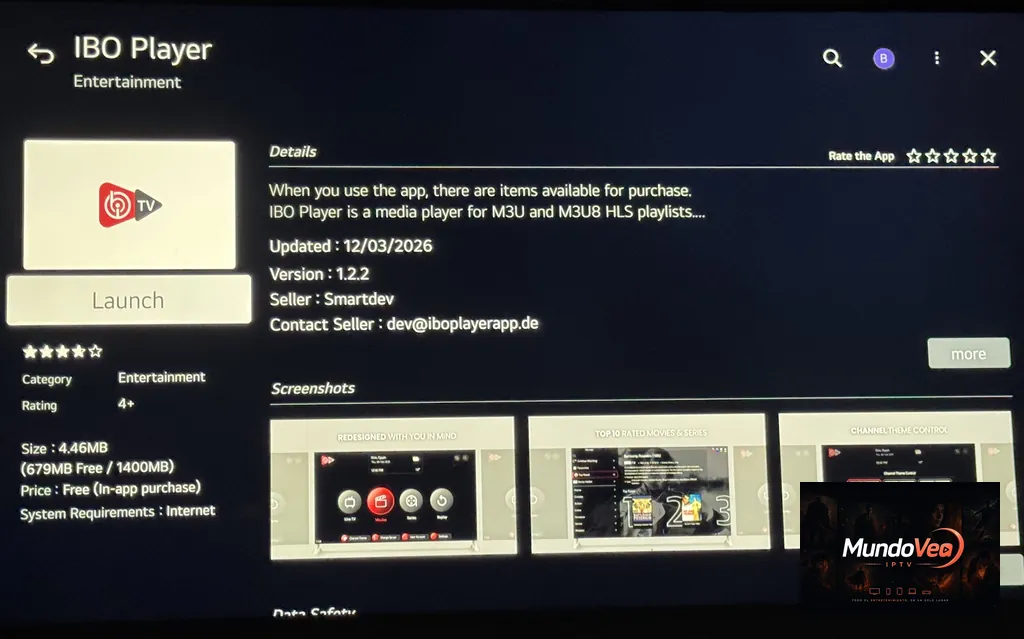
Recommended SEO file name: install-ibo-player-lg-webos-step-1.webp
Cannot find IBO Player? Availability may depend on your TV model, webOS version, and configured region. Check these elements before looking for an alternative installation method.
Step 2: install and launch IBO Player
Once the IBO Player application page is open, start the installation from your LG Smart TV. Wait for the download and installation to finish before opening the app.
- Select the option to install IBO Player.
- Wait for the download to complete.
- Allow webOS to complete the installation automatically.
- Once the app is available, select Launch or the equivalent option to open it.
- Wait while IBO Player starts for the first time.
During the first launch, IBO Player may display an introduction screen, information about how the app works, or instructions explaining how to link a playlist to the device.
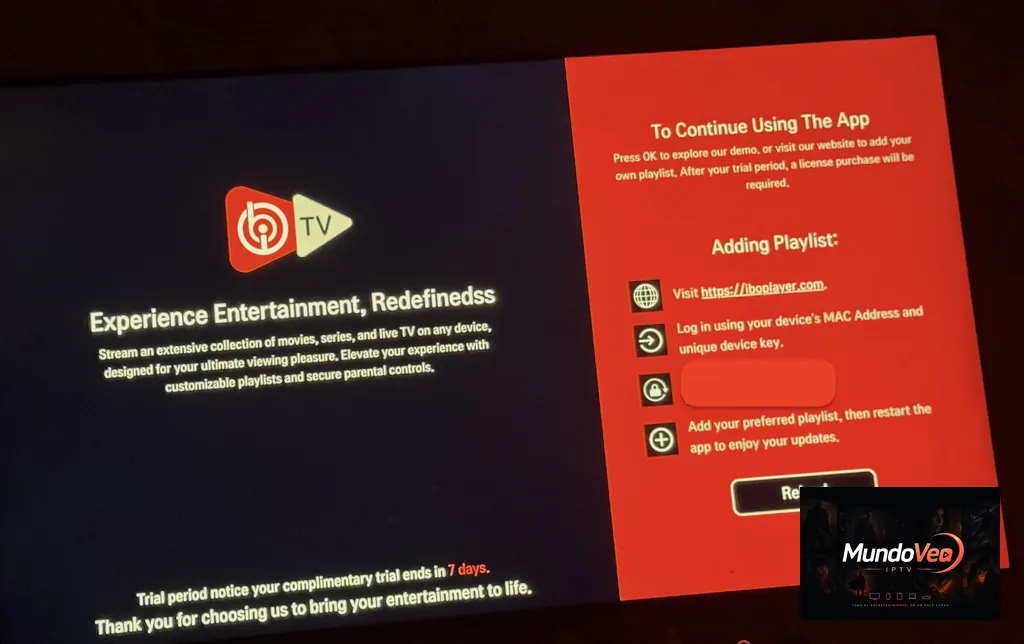
Important: installing IBO Player does not automatically add a playlist or TV channels. The next step is to identify your device and then connect your own compatible playlist.
Step 3: retrieve the MAC Address and Device Key
After launching IBO Player, look for the device identification information displayed by the app. You will need the MAC Address and Device Key to access the playlist manager and associate your configuration with this Smart TV.
These values belong to the device on which IBO Player is installed. It is therefore recommended to retrieve them directly from your television instead of reusing details from another device.
Where can I find the MAC Address?
The MAC Address used by IBO Player is displayed in the application interface, usually on the screen containing the information required for playlist management or activation.
It usually appears as a sequence of characters separated by colons or in another format selected by the application.
Example format:
AA:BB:CC:DD:EE:FF
Copy the value exactly as it appears on the screen. A single incorrect character can prevent the device from being identified correctly in the management portal.
Where can I find the Device Key?
The Device Key is also displayed by IBO Player alongside the device information. It acts as a key used to associate access to the playlist manager with the installation running on your TV.
- Open IBO Player on your LG Smart TV.
- Locate the section containing the device information.
- Find the Device Key line.
- Write down the displayed value carefully.
- Keep it together with the MAC Address for the next step.
| Information | Where to find it | Purpose |
|---|---|---|
| MAC Address | In the IBO Player interface on the TV | Identify the installation/device in the management portal |
| Device Key | In the IBO Player interface on the TV | Complete the device identification required to manage the playlist |
Why should you keep both pieces of information?
The MAC Address and Device Key will be used in the next part of the tutorial to access the IBO Player management portal. From this interface, you can add and manage the playlist intended for your LG Smart TV.
Keep them temporarily on your phone, computer, or in a private note. This prevents you from having to go back to the TV several times while completing the setup.
Privacy warning: do not publish your MAC Address, Device Key, or playlist credentials in public screenshots. Any screenshots used in a tutorial should hide sensitive information before publication.
IBO Player is now installed on your LG Smart TV webOS, and you have the information required to identify the device. The next step is to open the IBO Player management portal and add your IPTV playlist.
How to add an IPTV playlist to IBO Player
Once IBO Player is installed on your LG Smart TV and the device information has been retrieved, you can add your playlist. In this section, we use the XC Playlist / Xtream Codes method, which allows you to enter the playlist name, username, password, and server address separately.
The configuration is completed through the IBO Player management portal. Keep your television switched on and preferably use a smartphone, tablet, or computer to complete the following steps.
| Step | Action | Required information |
|---|---|---|
| 4 | Log in to the IBO Player portal | MAC Address + Device Key |
| 5 | Open Manage Playlists | No additional information |
| 6 | Select Add XC Playlist | Chosen connection method |
| 7 | Configure the XC Playlist | Username + Password + Host |
Before continuing: only use playlists and streams that you are authorized to access. IBO Player is a media player and does not itself provide the channels or content added to the application.
Step 4: open the IBO Player management portal
From your smartphone or computer, open the official IBO Player management portal. The interface asks you to identify the device on which the playlist should be configured.
Use the two pieces of information retrieved earlier from your LG Smart TV:
- MAC Address: the address displayed by IBO Player on your television;
- Device Key: the key associated with this installation of the application;
- Captcha: enter the characters displayed when the portal requests them.
After checking the information, select Login to access the area used to manage playlists associated with the device.
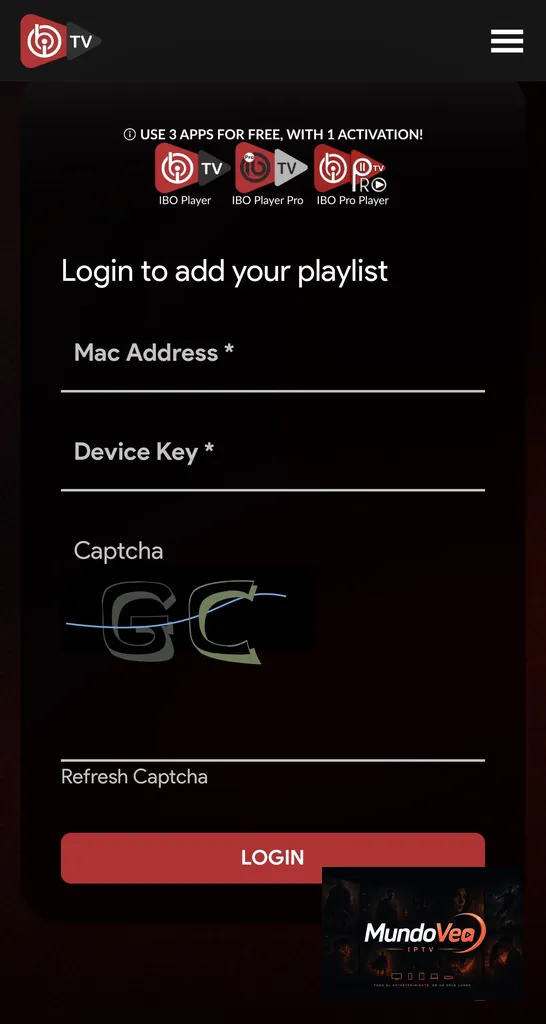
Login rejected? Check the MAC Address and Device Key first. A single incorrect letter, number, or character is enough to prevent the device from being identified.
Step 5: open Manage Playlists
Once logged in, you will arrive in the IBO Player management interface. Open the Manage Playlists section. This is where playlists associated with the device can be added and managed.
During the first setup, the interface may display the message “No Playlists to show”. This is normal: no playlist has yet been registered for this device.
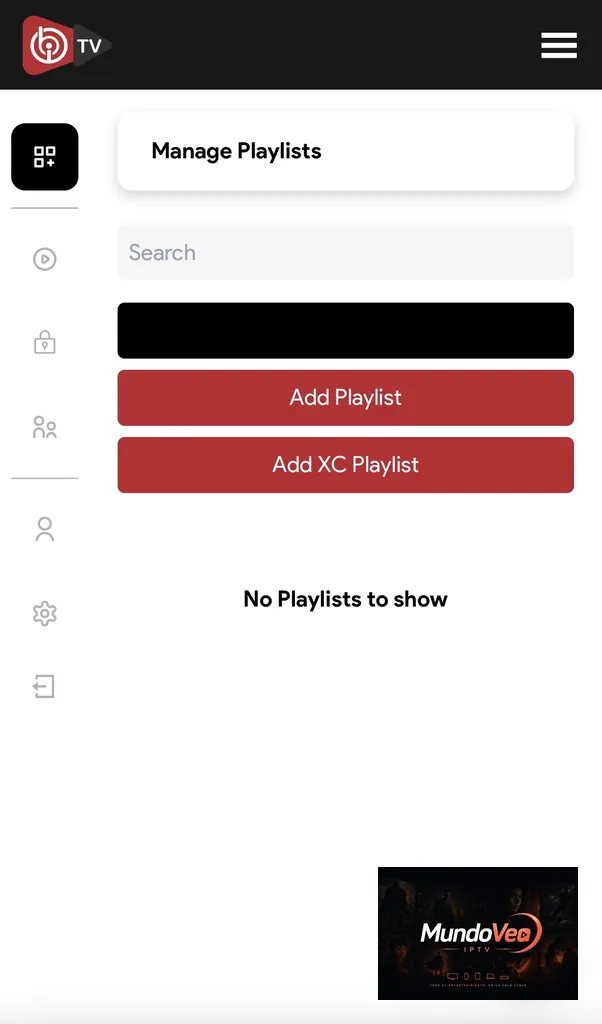
On this screen, you can see two important options:
- Add Playlist;
- Add XC Playlist.
The correct choice depends on the format of the information you have. For this tutorial, we will use Add XC Playlist.
Step 6: select Add XC Playlist
In Manage Playlists, select Add XC Playlist. A form will appear with the different fields required to configure your access.
Before entering anything, make sure you have at least the Username, Password, and Host associated with your playlist.
Why use XC Playlist?
The XC Playlist method is suitable when your login information is provided in the form of Xtream Codes credentials. Instead of entering one complete M3U URL, you enter the individual connection details separately.
- Playlist name;
- username;
- password;
- server address / Host;
- optionally, an XMLTV URL for the EPG.
This structure also makes connection details easier to verify when an error occurs.
Difference between Add Playlist and Add XC Playlist
Both options allow you to add a compatible source to IBO Player, but they require different information.
| Method | Use it when you have… | Main information required |
|---|---|---|
| Add Playlist | A compatible playlist supplied as a URL, including M3U depending on the setup | Name + playlist URL |
| Add XC Playlist | Xtream Codes-style login credentials | Username + Password + Host |
Simple rule: if you received a server address, username, and password separately, the Add XC Playlist method generally matches that type of setup.
Step 7: enter your Xtream Codes credentials
The Add XC Playlist form contains several fields. Enter each piece of information carefully. Most connection errors are caused by an incorrect username, an accidentally added space, or a server address that was copied incorrectly.
| IBO Player field | What to enter | Required |
|---|---|---|
| Playlist Name | A name used to identify your playlist | Yes |
| Username | The username provided with your access | Yes |
| Password | The password provided with your access | Yes |
| Host | The server address | Yes |
| XMLTV EPG URL | The XMLTV address for the TV guide | Optional |
| Protect this playlist | Additional playlist protection | Optional |
Playlist Name
In Playlist Name, choose a name that makes the configuration easy to identify in IBO Player. This name is mainly used to organize your playlists.
For example, you can use Living Room TV, LG webOS, or another personal name that is easy to recognize.
Username
In the Username field, enter the exact username associated with your playlist. Do not add spaces before or after the username, and preserve the characters exactly as they were provided.
Password
The Password field must contain the password linked to the username above. This is sensitive information, so never display it in a screenshot intended for public use.
- Respect uppercase and lowercase letters.
- Check numbers and special characters carefully.
- Avoid extra spaces introduced during copy and paste.
- Never share this password publicly.
Host / Server URL
The Host field is the address of the server that IBO Player connects to. Enter the address exactly in the format required by your service.
https://server.exampleIf the address includes a port, keep it:
http://server.example:8080Important: do not arbitrarily change the protocol, domain, or port. An incorrect server URL will prevent IBO Player from retrieving the playlist data.
XMLTV EPG URL
The XMLTV EPG URL field is used for the electronic program guide. If you have a compatible XMLTV URL, you can add it so IBO Player can retrieve the corresponding EPG information.
This field is shown as optional in the interface. If you were not given a separate XMLTV URL, do not enter a random address simply to complete the form.
Protect this playlist and PIN code
IBO Player also provides a Protect this playlist option. When enabled, you can define a PIN code to protect access to or modification of the playlist, depending on how the application handles this feature.
- Enable Protect this playlist.
- Enter the PIN you want to use.
- Confirm the PIN if a confirmation field is displayed.
- Keep this code in a safe place.
This protection can be particularly useful when several people use the same Smart TV and you want to prevent accidental changes to the configuration.
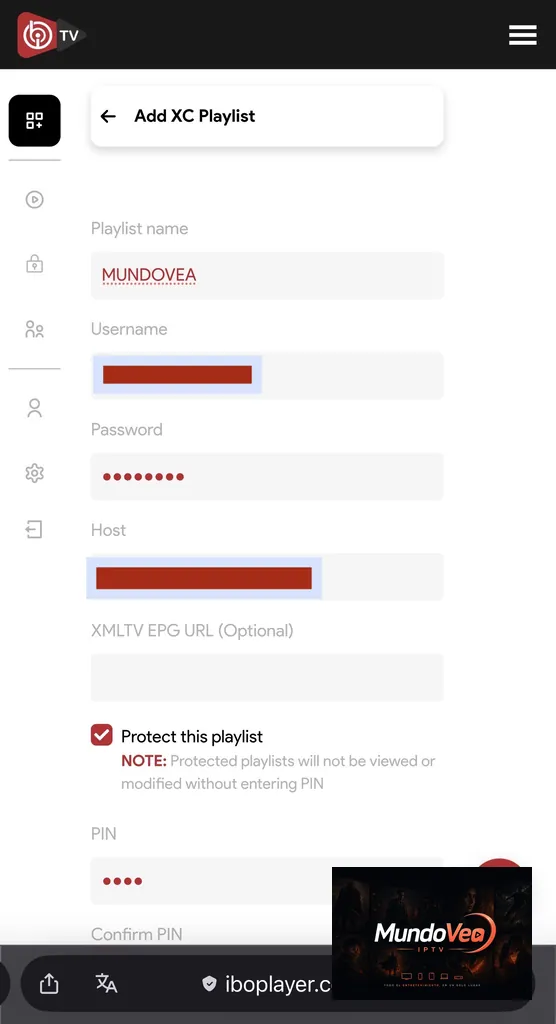
Before saving: check the Username, Password, and Host one last time. These are the three fields to verify first if an XC Playlist fails to connect.
Your XC playlist is now configured in the IBO Player management portal. One important step remains: return to your LG Smart TV, restart or refresh IBO Player, and confirm that the authorized categories and content from your playlist load correctly.
How to load the playlist on IBO Player from your LG TV
After saving your playlist in the IBO Player management portal, return to your LG Smart TV. The application should now retrieve the new configuration and display the categories available in your playlist.
This final stage lets you verify three essential points: that the playlist has synchronized correctly with the TV, that the available categories appear in IBO Player, and that a stream can be opened successfully.
| Step | Action | Expected result |
|---|---|---|
| 8 | Restart IBO Player | The new configuration is retrieved |
| 9 | Check the playlist | The available categories appear |
| 10 | Test a stream | Video playback and EPG when available |
Step 8: restart IBO Player on LG webOS
Once the playlist has been saved through the portal, return to your LG Smart TV running webOS. If IBO Player remained open while you were configuring the playlist, the application may continue to display its previous state until it refreshes its data.
Close IBO Player and open it again. When it restarts, the application should reconnect and retrieve the playlist associated with your TV’s MAC Address and Device Key.
- Finish saving the playlist in the IBO Player portal.
- Return to your LG Smart TV.
- Close IBO Player if it is still open.
- Launch the application again.
- Wait while the data loads.
- Check that the main playlist screen appears.
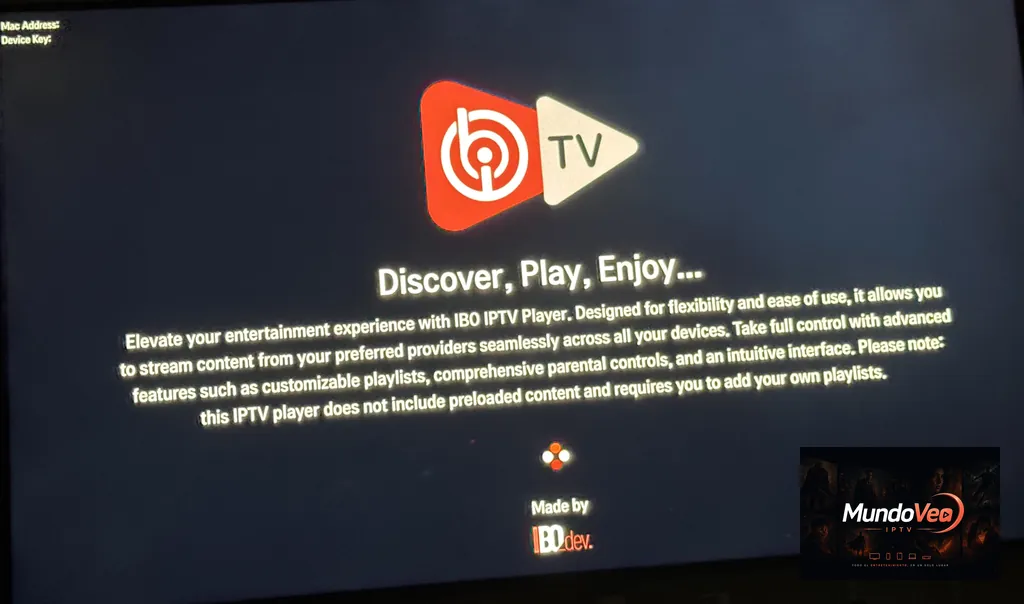
The playlist does not appear immediately? Wait a few moments, then fully restart IBO Player. Also make sure the playlist was saved for the correct MAC Address and Device Key.
Step 9: check that the playlist has loaded
When synchronization works correctly, the main IBO Player screen should display the categories available in your playlist. Their presence and content depend directly on the data provided by your source.
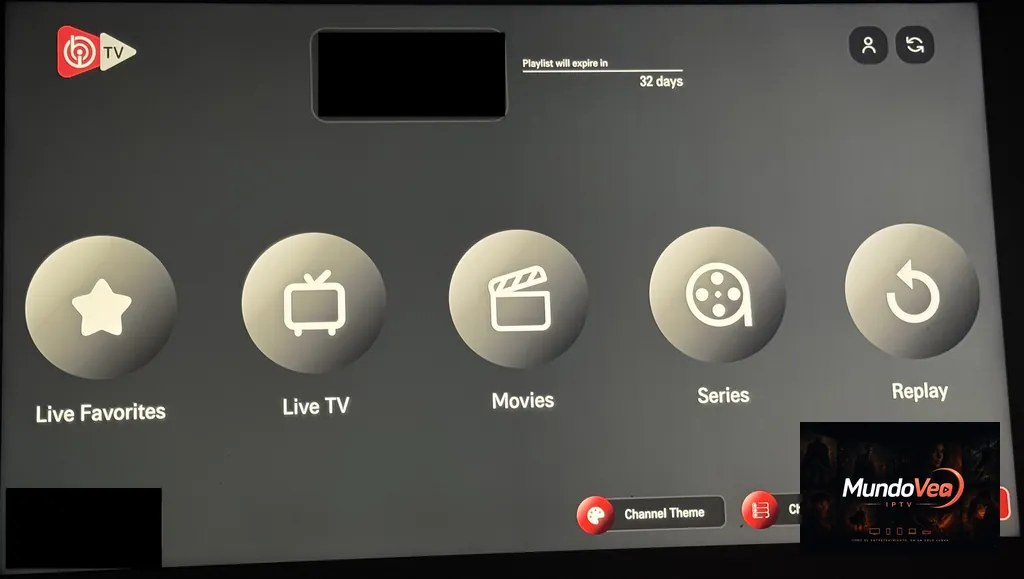
Live Favorites
The Live Favorites section allows you to quickly access the live channels or streams you have added to your favorites. During your first use, this section may naturally be empty until you save at least one favorite.
Live TV
Live TV contains the live streams available in your playlist. They may be organized into different categories to make navigation easier with your LG Smart TV remote control.
This section is also useful for carrying out your first playback test after configuration.
Movies
The Movies section appears when your source contains on-demand content identified as movies. IBO Player can then display these separately from live streams.
Series
The Series category is used to organize series and their episodes when this data is available in the playlist. If this section is empty or missing, it does not necessarily mean that IBO Player is malfunctioning: availability depends on the configured source.
Replay
The Replay or Catch-up feature allows access to previously broadcast programs when this functionality is supported by the source and correctly recognized by the application.
| Section | Function | Can it be empty? |
|---|---|---|
| Live Favorites | Channels added to favorites | Yes |
| Live TV | Live streams | Yes, depending on the playlist |
| Movies | On-demand movies | Yes |
| Series | Series and episodes | Yes |
| Replay | Catch-up content | Yes |
Step 10: open a channel and test playback
The presence of the playlist in IBO Player confirms that the configuration has been retrieved, but you still need to test playback on the LG TV. To do this, open Live TV and test a channel that you are authorized to watch.
Open Live TV
From the main IBO Player screen, select Live TV using the remote control. The application should load the list of groups or categories available in the playlist.
Choose a category
Browse the displayed categories, then select the one you want to open. The exact structure depends on how your playlist is organized: IBO Player displays the information received from the source.
Select a channel
Next, choose a channel from the list. After a few moments, the player should attempt to open the corresponding stream.
- Check that the picture appears.
- Check that the sound works.
- Test navigation to another channel.
- Observe whether the stream remains stable for several minutes.
- Check the EPG information when available.
Check the EPG and video playback
When EPG data is correctly associated with the channels, IBO Player can display the current program name, broadcast times, or other TV guide information. The exact information shown depends on the XMLTV or EPG data provided to the application.

Recommended SEO file name: test-iptv-channels-ibo-player-lg-step-10.webp
Troubleshooting tip: if only one channel has a problem while several others work normally, the issue is not necessarily related to your IBO Player installation. Test several streams before changing your configuration.
How to configure the EPG in IBO Player
The EPG (Electronic Program Guide) adds TV program information to the interface. It can show what is currently being broadcast as well as upcoming programs. In IBO Player, an XMLTV source can be associated with the playlist when a compatible URL is available.
Add an XMLTV EPG URL
If your configuration includes an XMLTV EPG URL, enter this address in the field provided by IBO Player. The URL should be entered exactly as it was provided to you.
Where can I find the XMLTV EPG URL field?
In the IBO Player management portal, open Manage Playlists, then add or edit your XC Playlist. The form contains a field called XMLTV EPG URL.
- Log in to the IBO Player portal using the MAC Address and Device Key.
- Open Manage Playlists.
- Open your XC Playlist.
- Locate XMLTV EPG URL.
- Paste the corresponding XMLTV URL.
- Save the changes.
- Restart IBO Player on your LG TV if necessary.
Important: do not use a random XMLTV URL found online. The guide must match the channels and identifiers used by your playlist so that programs can be associated correctly.
How can I check that the TV guide is working?
After saving the URL and refreshing IBO Player, open Live TV and select several channels. If the EPG is working, program information should appear for channels that have corresponding guide data.
| Result | Possible interpretation |
|---|---|
| EPG visible on most channels | The configuration is probably correct |
| EPG missing everywhere | Check the XMLTV URL and whether the data is loading correctly |
| EPG visible only on certain channels | The guide data may not cover every channel |
| Incorrect or time-shifted program information | Check the EPG source, channel mapping, and time settings |
IBO Player not working on LG TV: common problems and solutions
A problem with IBO Player on LG webOS does not necessarily mean that the application itself is faulty. The setup involves several independent elements: the Smart TV, Internet connection, application, credentials, server, playlist, and possibly the EPG.
The best way to identify the cause is therefore to troubleshoot methodically rather than changing several settings at the same time.
| Problem | What to check first |
|---|---|
| App cannot be found | LG model, webOS version, region, and app store |
| Playlist is missing | MAC Address, Device Key, and saved configuration |
| XC error | Username, Password, and Host |
| Channels do not load | Internet connection, server, and streams |
| EPG is missing | XMLTV URL and EPG data |
| App is slow | Network, restart, TV resources, and playlist size |
IBO Player does not appear in the LG Content Store
If you cannot find IBO Player in your LG Smart TV’s app store, first make sure you are searching for the exact name of the application.
- Check your TV model.
- Check your webOS version.
- Install any available TV software updates.
- Check the configured region.
- Restart the TV, then search again.
- Check the current availability of the app for your device.
Avoid downloading files from unknown websites to bypass your TV’s official app store.
The playlist does not appear after being added
If you saved the playlist through the portal but it does not appear on the TV, start by closing and restarting IBO Player.
- Confirm that the playlist was successfully saved.
- Make sure you used the MAC Address of the correct TV.
- Check the Device Key.
- Restart IBO Player.
- Check the TV’s Internet connection.
Incorrect Xtream Codes credentials
An error in your Xtream Codes credentials can completely prevent the playlist from loading. Compare the information you entered with the credentials you were provided.
- Username: make sure there are no missing or extra characters;
- Password: check uppercase and lowercase letters as well as special characters;
- Host: make sure the domain has been entered correctly;
- Port: keep it when it is part of the address;
- Protocol: do not arbitrarily replace HTTP with HTTPS or vice versa.
Server connection error
If the credentials appear to be correct but IBO Player cannot connect, first make sure your Smart TV has a working Internet connection.
If the Internet works normally in other applications, the issue may be related to the Host address, server availability, or the validity of the access credentials being used.
Best practice: do not immediately change every setting. Check one element at a time so you can accurately identify the source of the error.
Channels are not loading
If the categories appear but the streams do not start, test several channels. This distinction is important because it helps determine whether the issue affects the entire configuration or only certain streams.
- Test several channels from different categories.
- Check the stability of your Internet connection.
- Restart IBO Player.
- Restart the Smart TV if necessary.
- Make sure your access is still valid.
- Check the availability of the source if several streams are unavailable.
Movies or series are not displayed
If Live TV works but Movies or Series is empty, this does not automatically mean that the installation is incorrect. IBO Player can only display the categories and data available in the playlist.
First, refresh the playlist. If the problem persists, check whether your source actually contains these categories and whether they are available for your configuration.
The EPG is not working
If the channels work but the TV guide remains empty, focus your troubleshooting on the EPG data rather than the entire playlist.
- Check the XMLTV EPG URL.
- Make sure no characters were removed when copying and pasting the URL.
- Save the playlist again.
- Refresh or restart IBO Player.
- Check whether the EPG works on only certain channels.
- Check the TV’s date, time, and time zone settings if the schedule is shifted.
The playlist does not update
If you modified the playlist through the portal but the TV continues to display the old information, completely close IBO Player and then launch it again.
If the old data remains, make sure the changes were successfully saved in Manage Playlists and that they were applied to the same device.
Black screen on some channels
A black screen affecting a single channel should be distinguished from a black screen affecting every channel. If other streams work normally, the issue may be specific to that particular stream.
| Situation | Recommended troubleshooting |
|---|---|
| Only one channel does not work | Test other streams before changing the configuration |
| An entire category does not work | Check the source and the category data |
| No channels work | Check the Internet connection, credentials, Host, and service availability |
| Picture works but there is no sound | Test several streams and check the TV’s audio settings |
IBO Player is slow or keeps freezing
A slow application can have several causes: an unstable network connection, limited TV resources, a large playlist, or a temporary issue with the application.
- Completely close IBO Player.
- Restart your LG Smart TV.
- Check your Internet connection.
- Close unused applications when webOS allows it.
- Check whether an IBO Player update is available.
- Check whether a webOS update is available.
- Launch IBO Player again and retest it.
Troubleshooting method: always start by determining whether the problem comes from the TV, network, application, playlist, or a specific stream. This approach prevents you from deleting a correct configuration while trying to solve a problem located elsewhere.
At this stage, IBO Player is installed and configured on your LG Smart TV running webOS, your playlist is loaded, and you also know how to check the EPG and troubleshoot the main operating issues.

Community
Comments and replies
Read real feedback, answer with context and leave a clearer opinion for the next visitor.