


Article
Back to blogLast updated:
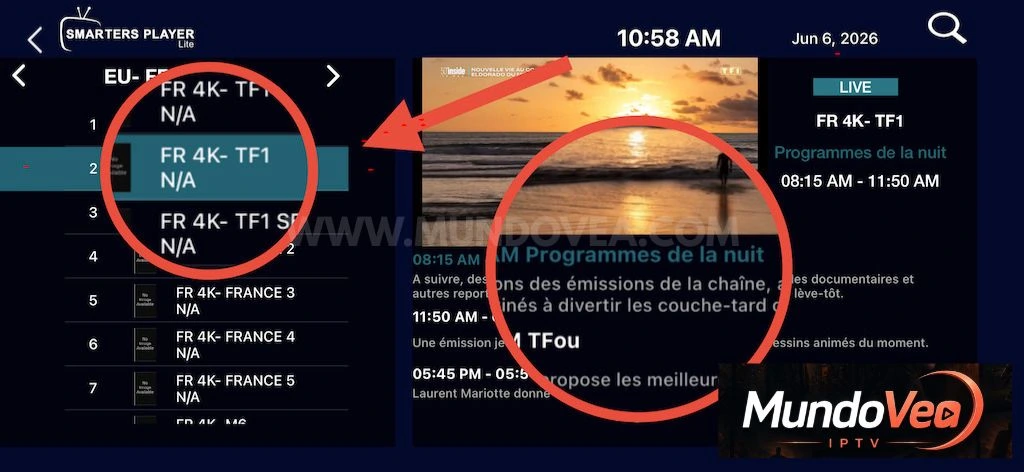
If you use Smarters Player Lite to watch your IPTV channels, you’ve almost certainly run into that annoying “N/A” showing up where the programme names should be. No title, no schedule, just an empty guide that’s no use to anyone. It’s frustrating, I’ll admit, especially when all you want to know is what’s on tonight on BBC One or ITV.
The good news is that this problem is hardly ever serious. In 9 cases out of 10, all you need to do is relaunch the EPG update from within the app, wait two or three minutes, and everything goes back to normal. I’m going to show you exactly how to do it, with screenshots for every step, so you never get stuck.
This guide is deliberately detailed. Whether you’re a complete beginner or you’ve been tinkering with IPTV for years, you’ll find everything you need here to fix the issue in just a few minutes.
What is the EPG and why does it show “N/A”?
Before you start tapping buttons a bit at random, it’s worth understanding what’s actually going on. It’ll save you some stress next time around.
What the electronic programme guide actually does
EPG stands for Electronic Program Guide. In plain English, it’s simply the TV guide. It’s the equivalent of the telly listings magazine we used to leave on the coffee table, except it’s built straight into the app.
In practice, the EPG shows you, for each channel, the programme that’s currently on, the one before, the one after, along with their times and sometimes a short summary. It’s what turns a plain list of channels into a proper, usable TV guide.
What it’s actually for, day to day
Without an EPG, you’re channel-hopping blind. With an up-to-date EPG, you can see at a glance that the film starts at 10:00 pm, that there’s a live match on another channel, or that you’ve got ten minutes before the news. The EPG is also what makes the Catch Up feature (replay) work, so it’s worth keeping it clean.
Why your channels show “N/A”
“N/A” means Not Available. Put simply, the app hasn’t managed to retrieve the programme information for those channels. The video stream itself often works perfectly fine: it’s just the information layer sitting on top of it that’s missing.
The most common causes
In the vast majority of cases, the problem comes down to one of the points below. There’s no need to look any further.
An incomplete first load
When you install the app or add a new playlist, the EPG has to download a huge file containing the schedule for every channel. If the connection dropped for a second, or if you closed the app too soon, the file ends up incomplete and full of “N/A”.
A temporarily unavailable EPG server
The EPG isn’t generated on your device, it comes from your provider’s server. If that server was overloaded or under maintenance at the time of the last sync, your app will have pulled in empty data. A simple retry a few hours later usually sorts the problem out.
Before you start: what you’ll need
Nothing complicated here, but it’s worth ticking two or three boxes before you dive in. That way you avoid going round in circles.
Check your subscription and your connection
First things first: make sure your IPTV subscription is still active. An empty EPG can sometimes be hiding an expired subscription. On the Smarters Player Lite home screen, the expiry date is shown at the bottom left.
Next, check that your internet connection is solid. The EPG is fairly heavy (tens of thousands of lines), so a connection that drops halfway through the download means guaranteed failure. If you’re on Wi-Fi with one and a half bars of signal, move closer to the router.
A quick note on the expiry date
If your expiry date has already passed, there’s no point going any further: no EPG update will work until the subscription has been renewed. Check this first of all, it’ll save you time.
Getting to know the Smarters Player Lite interface
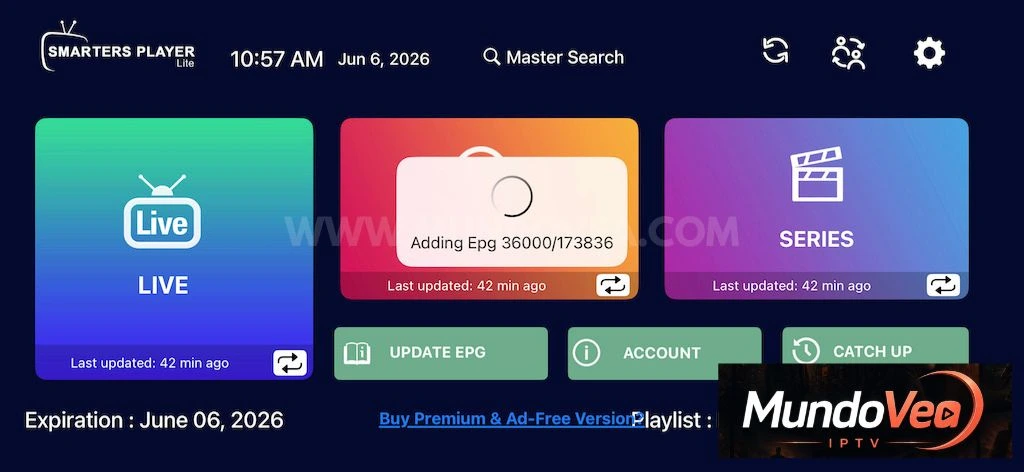
The app’s home screen is fairly clear once you’ve got the hang of it. At the top you’ve got the time, the date and the search bar. In the centre and on the right, the big coloured tiles: Live (the live channels), a central block dedicated to the EPG, and Series. Just below, three green buttons: Update EPG, Account and Catch Up.
The button we’re interested in is Update EPG. Make a note of where it is, because we’ll be coming back to it shortly.
How to update the EPG in Smarters Player Lite step by step
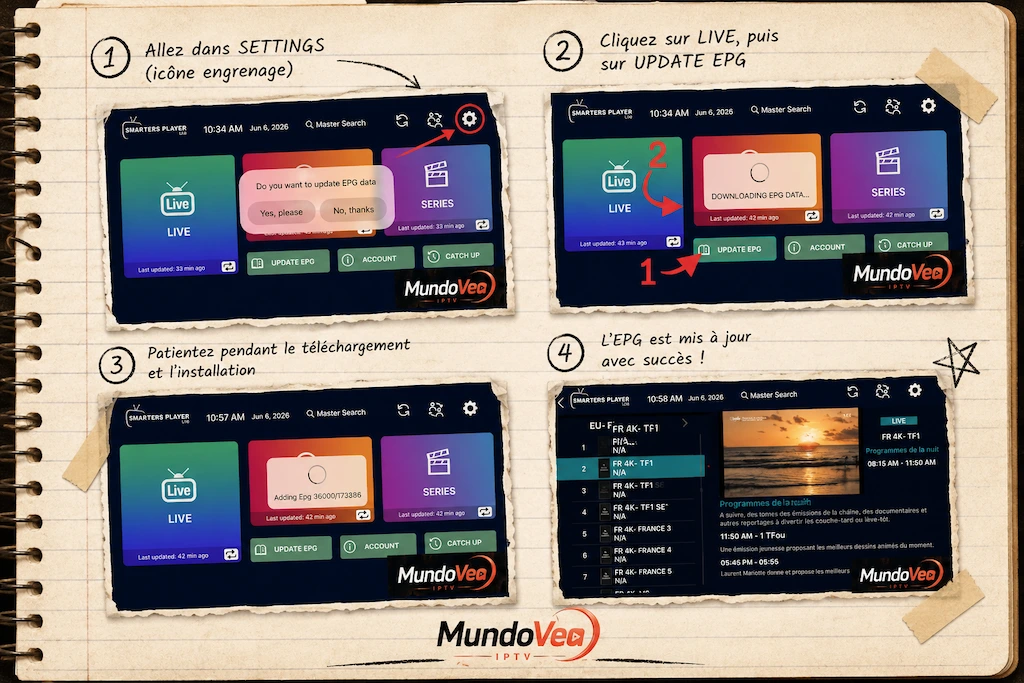
Now for the hands-on part. Follow the steps in order, without skipping any, and everything should go smoothly. Allow three to five minutes in total.
Step 1 – Start the EPG update
It all starts from the home screen. No need to dig through the settings, the button is right in front of you.
Find the “Update EPG” button
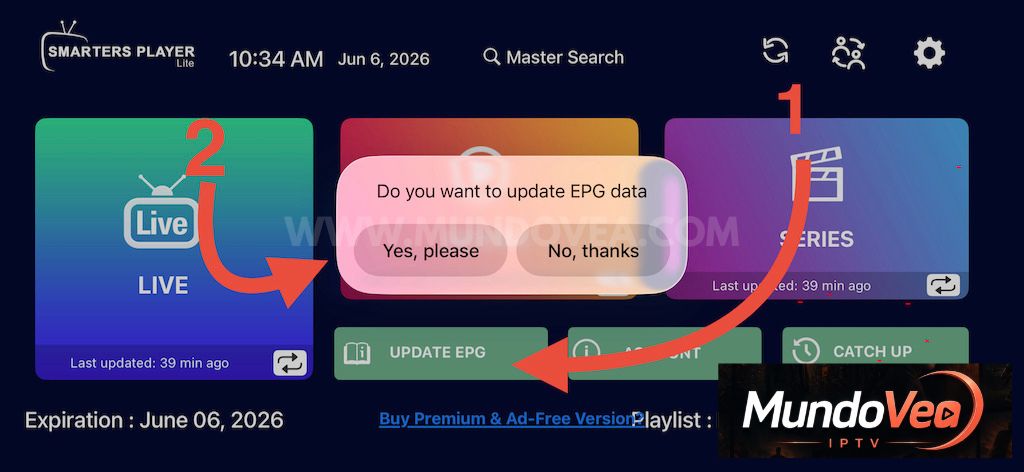
Look at the row of green buttons just below the big tiles. The first one on the left is called Update EPG (with a little open-book icon). That’s the one to select. In the image below, arrow number 1 points straight at it.
Confirm the update request
As soon as you tap Update EPG, a small window appears in the centre of the screen with the question: “Do you want to update EPG data”. You’ve got two options: Yes, please or No, thanks.
As you’ll have guessed, select Yes, please. Arrow number 2 on the screenshot shows you the way. That simple “yes” is what kicks off the whole download process.
What to do if the window doesn’t appear
Sometimes the confirmation window doesn’t open, or it disappears too quickly. In that case, tap the Update EPG button a second time. If still nothing happens, close the app completely and reopen it before trying again. A clean restart almost always gets things moving.
Step 2 – Let the app download the data
Once you’ve said yes, the app gets to work. From here on, your only job is to not touch anything.
The “Downloading EPG Data” message
You’ll see the message “DOWNLOADING EPG DATA..” appear in the central block, along with a small spinning wheel. Below it, the button shows “EPG installing…”. This is exactly what we want to see: it means the download has started and everything is running normally.
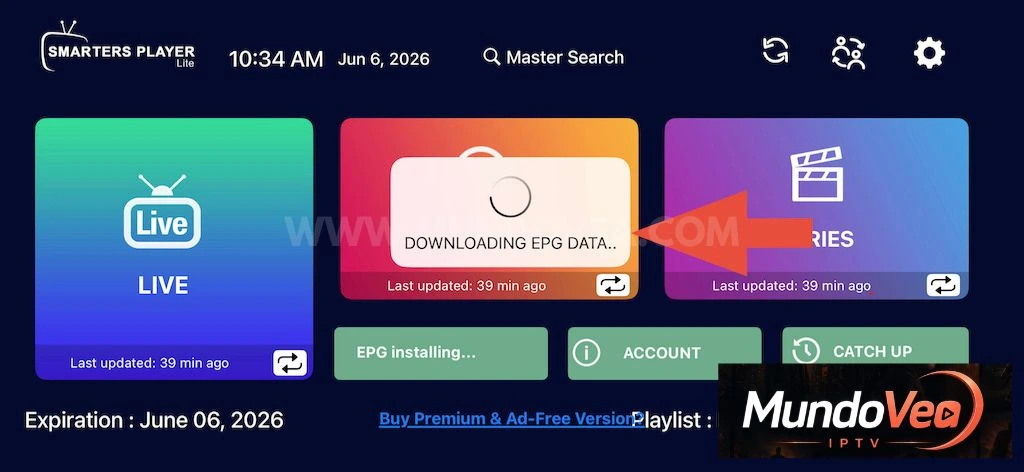
At this point, above all don’t close the app or cut off the Wi-Fi. The file is downloading onto your device, and interrupting it now would take you right back to square one, with those famous “N/A” labels returning. A little patience goes a long way.
Step 3 – Wait during the installation
Once the download is done, the app moves on to the installation itself. It’s the longest step, but also the simplest: you’ve got nothing to do.
Understanding the “Adding EPG” counter
You’ll see a counter on screen, something like “Adding Epg 36000/173836”. Those numbers are simply the count of programmes the app is adding into its guide. In this example, it has processed 36,000 entries out of the 173,836 expected in total.
It’s reassuring to see, because it proves the update really is progressing. The number on the left gradually climbs until it catches up with the one on the right. When the two numbers match, it’s finished.
How long it really takes
It all depends on the number of channels in your package and the power of your device. On a recent box with a good connection, allow one to three minutes. On an older device, or with a very large European package, it can stretch to five minutes, sometimes a bit more. As long as the counter is moving, even slowly, everything is fine. Just let it work.
Check that the EPG update worked
Once the counter reaches the end, the app returns to the normal home screen. All that’s left is to confirm the programmes are finally showing correctly.
Go back to the Live section
Select the big Live tile on the home screen and open any channel. If everything has gone well, you should now see the programme names, their times and the LIVE tag on whatever’s currently airing, instead of the “N/A” from before. Get into the habit of checking on two or three different channels, just to be sure.
What to do if some channels are still on “N/A”
It’s perfectly normal for some channels to stay without an EPG, even after a successful update. Not every channel provides its programme guide, particularly highly specialised foreign channels or test streams. It’s not a fault on your end.
On the other hand, if the majority of your channels are still on “N/A”, then there genuinely is a problem. In that case, we move on to troubleshooting.
Force a full refresh
To start from a clean slate, the most effective approach is to relaunch an update from scratch. Go back to Update EPG, confirm with Yes, please and let the process run all the way through without interrupting anything. In many cases, a second pass is enough to fill in the gaps left by a first, partial update.
Fixing common EPG problems
If it’s still not working despite all this, here are the most common issues and how to get out of them. I’ve sorted them by symptom so you can quickly find your case.
The EPG won’t update at all
You tap Update EPG, but nothing happens, or the counter stays stuck at zero. First reflex: check your internet connection by opening another app that needs the network. If the internet works elsewhere but not in Smarters Player Lite, the problem probably comes from your provider’s EPG server, which is temporarily unavailable. Wait a few hours and try again.
Check the time zone
A wrongly configured time zone can stop the EPG from syncing properly, or make programmes appear completely out of sync. Go into the app’s settings (the cog-shaped icon at the top right) and make sure the time zone matches your region. For the UK, you should be on GMT (or GMT+1 during summer time).
The programmes show at the wrong time
Can you see the programme names clearly, but they’re showing at the wrong time? That’s the classic symptom of a wrongly set time zone, as we just saw. Fix it in the settings, then relaunch an EPG update so everything realigns. Nine times out of ten, the offset disappears straight afterwards.
The app crashes during the update
If the app shuts down on its own in the middle of the installation, it’s usually a question of saturated memory, especially on older devices. Close all the other apps running in the background to free up memory, restart your box or TV outright, then reopen Smarters Player Lite. Once the memory is freed up, the update usually goes through without a hitch.
Tips for keeping your EPG always up to date
Now that your guide is clean, it’s worth avoiding a repeat of the “N/A” ordeal. A few good habits are all it takes to keep an EPG in good shape.
Automatic updates
Smarters Player Lite normally refreshes the EPG on its own at regular intervals. That’s why you see the “Last updated: 42 min ago” message under the tiles. As long as that delay stays reasonable (a few hours at most), you’ve got nothing to do: the app handles everything in the background.
The right update frequency
There’s no point launching a manual update every five minutes, it does nothing and loads the server for no reason. In practice, a manual update once a day, or simply when you notice some “N/A”, is more than enough. If your EPG is fine, leave it alone: sometimes the best is the enemy of the good.
Conclusion
And there you have it, you now know everything you need to update the EPG in Smarters Player Lite and say goodbye to recurring “N/A”. To sum up the move: a tap on Update EPG, a Yes, please to confirm, and a little patience during the download and installation. Job done.
Keep in mind the two or three troubleshooting reflexes we’ve covered: check the connection, review the time zone and relaunch a full update if needed. With that, you’ll be self-sufficient when facing most EPG problems, without having to contact anyone.
If this guide has been useful to you, save it: the next time an “N/A” rears its head, you’ll know exactly what to do in under five minutes.

Community
Comments and replies
Read real feedback, answer with context and leave a clearer opinion for the next visitor.